

Samsung TV with the Tizen platform is a game-changer to the smart TV market. It offers tremendous specs, smooth display performance, and rich connectivity. However, Samsung has integrated some features that are not for everybody, so you may have to make some changes to protect your TV from unknown connections. In this guide, we will explain how to stop devices connecting to Samsung TV.
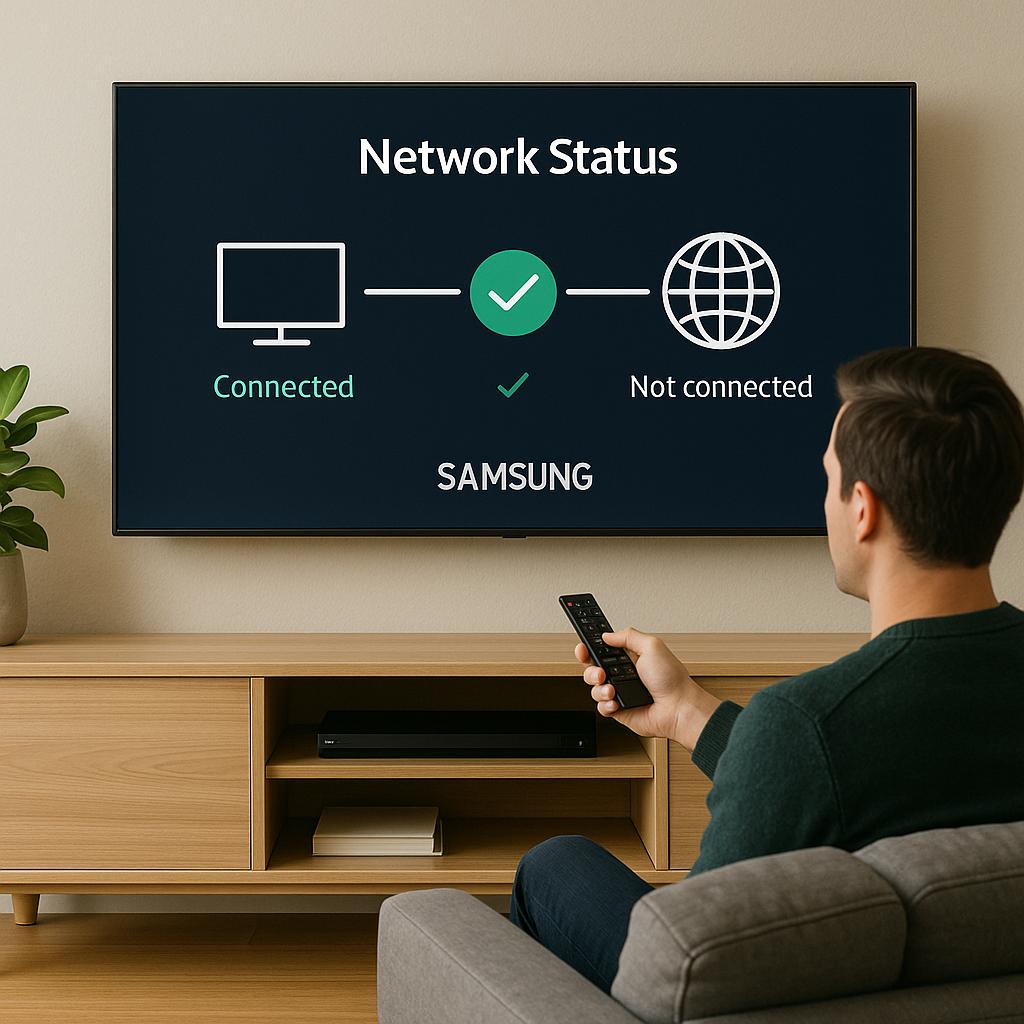
Considering the excellent detection of smart devices and automatic connection option of Samsung Smart TV, the unnecessary device pairing can be really annoying. But first, you should learn how to check the Network status and see how many and which devices are connected to your Samsung TV. This knowledge is crucial for understanding how to stop devices connecting to Samsung TV.
To Check Network Status
- Turn on your Samsung TV.
- Grab a remote control and press the Menu button
- From the drop-down menu at the left, select the Network.
- Click on the Network status
- A window will open that will show you whether you are connected to the internet or not.
How to Stop Devices Connecting to Samsung TV
If you want to remove or stop any device from connecting to your Samsung TV, here’s how you can do it.
- Turn on your Samsung TV
- Go to the TV settings using your remote control
- Go to General and then Network
- In the Network menu, tap on the External Device Manager
- Click on the Device Connect Manager, the last option in the list.
- Then go to the device list, which will take you to another window where all the magic happens.
- Here you should see all the devices connected or trying to connect to your TV. You can tap on the unrecognized device and select the Denied option. It will restrict the device from connecting to the TV in the future and allow you to stream in peace.
- Close the window, and the changes will save automatically.
Anytime you feel any suspicious activity on your Samsung TV, you can repeat the process and deny access to any device that shouldn’t be here in the first place.
Stop Bluetooth Pairing Requests
Another way to connect to Samsung TV is by Bluetooth. Turning off the feature when not in use is recommended, so no smart device roaming around the TV with the feature on can not connect to it.
But, you can still stop devices from connecting or block already connected devices by following these few easy steps.
- Go to the settings of Samsung TV
- Press the Bluetooth option and tap on the Advanced
- Here you can deny access to unrecognized devices by pressing on the “Block pairing requests.”
- Only the authentic and recognized device with your permission can pair with your TV.
Moreover, turning off the “nearby share” and putting your device availability to “Hidden” can also work in this matter.
General infos about Samsung smart TV
- Samsung smart TVs are equipped with a variety of features, including internet browsing, streaming apps like Netflix and Hulu, and the ability to connect to other smart devices in your home
- Samsung smart TVs typically have high-quality screens with vibrant colors and sharp resolution, making them ideal for watching movies and TV shows
- Many Samsung smart TVs come with the SmartThings app pre-installed, which allows you to control and monitor smart devices in your home, such as lights, thermostats, and security cameras
- Samsung smart TVs often have Bluetooth connectivity, allowing you to connect wireless headphones or speakers for a more immersive viewing experience. They may also have the ability to connect to other Bluetooth-enabled devices, such as keyboards or gaming controllers
Ask the Samsung community
The Samsung Community is an online platform where Samsung users can ask questions, seek help, share tips and tricks, and connect with other users. The community is moderated by Samsung staff and volunteers who help answer questions and provide assistance to users.
Users can find troubleshooting guides, tutorials, and product information on the Samsung Community website. They can also participate in discussions, share feedback on Samsung products, and contribute their own knowledge to help others.
The Samsung Community is a valuable resource for Samsung users looking for technical support, product recommendations, or solutions to common issues. Whether you have a question about your smartphone, tablet, TV, or any other Samsung device, the community is a great place to turn to for help.

0 Comments